How to forward text messages to Slack?
Quick Answer: To forward SMS to Slack, create an Incoming Webhook in your Slack channel, copy the webhook URL, add it as a Slack destination in the Forward SMS app, then set up a Shortcuts automation. Messages will appear in your Slack channel within seconds.
Looking for the feature overview rather than the step-by-step? See our SMS to Slack landing page for use cases, supported channel types, and the full picture of how it works.
What is SMS to Slack Forwarding?
SMS to Slack forwarding automatically sends your text messages to a Slack channel or direct message. Teams use this to share OTP codes for shared accounts, receive delivery notifications, or route customer SMS to support channels. Forward SMS uses iOS Shortcuts and Slack webhooks to send messages from your iPhone into Slack.
Slack is a widely-used tool for team collaboration, offering flexibility and seamless integrations. With the Forward SMS app for iPhone, you can easily set up SMS forwarding to Slack. This ensures that important messages, like One-Time Passwords (OTPs) or 2-factor authentication (2FA) codes, are sent directly to your Slack workspace for quick access.
Install Forward SMS
First, download the latest version of Forward SMS from the App Store. This app lets iOS Shortcuts prepare incoming SMS messages for forwarding to your configured destinations.
Add Webhook Integration to your Slack Channel
You’ll need a Webhook URL to send messages to your Slack channel. Follow these steps to set up an Incoming Webhook:
Step 1: Add the Incoming WebHook app
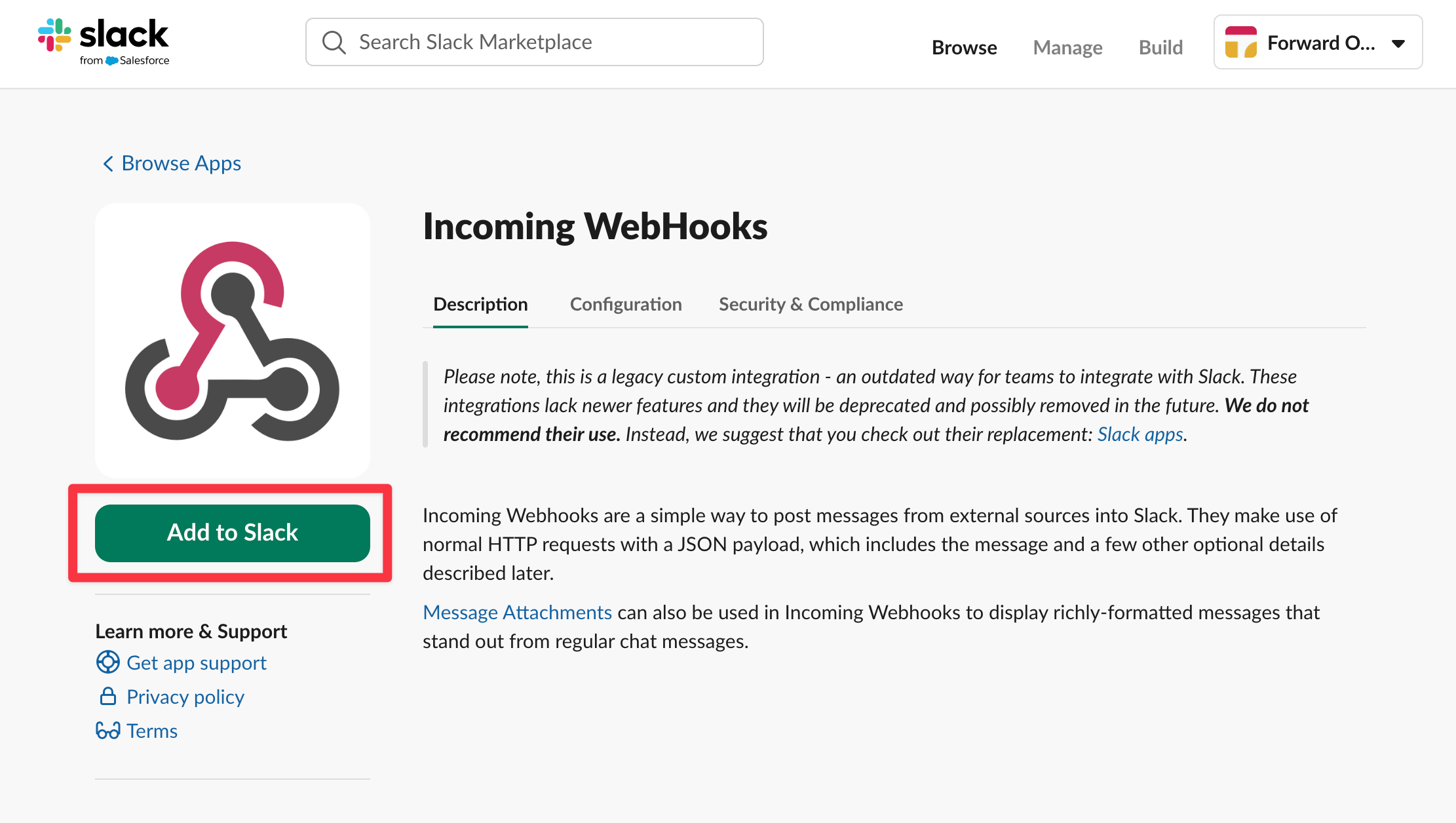
Find Slacks' Incoming WebHooks app in their marketplace.
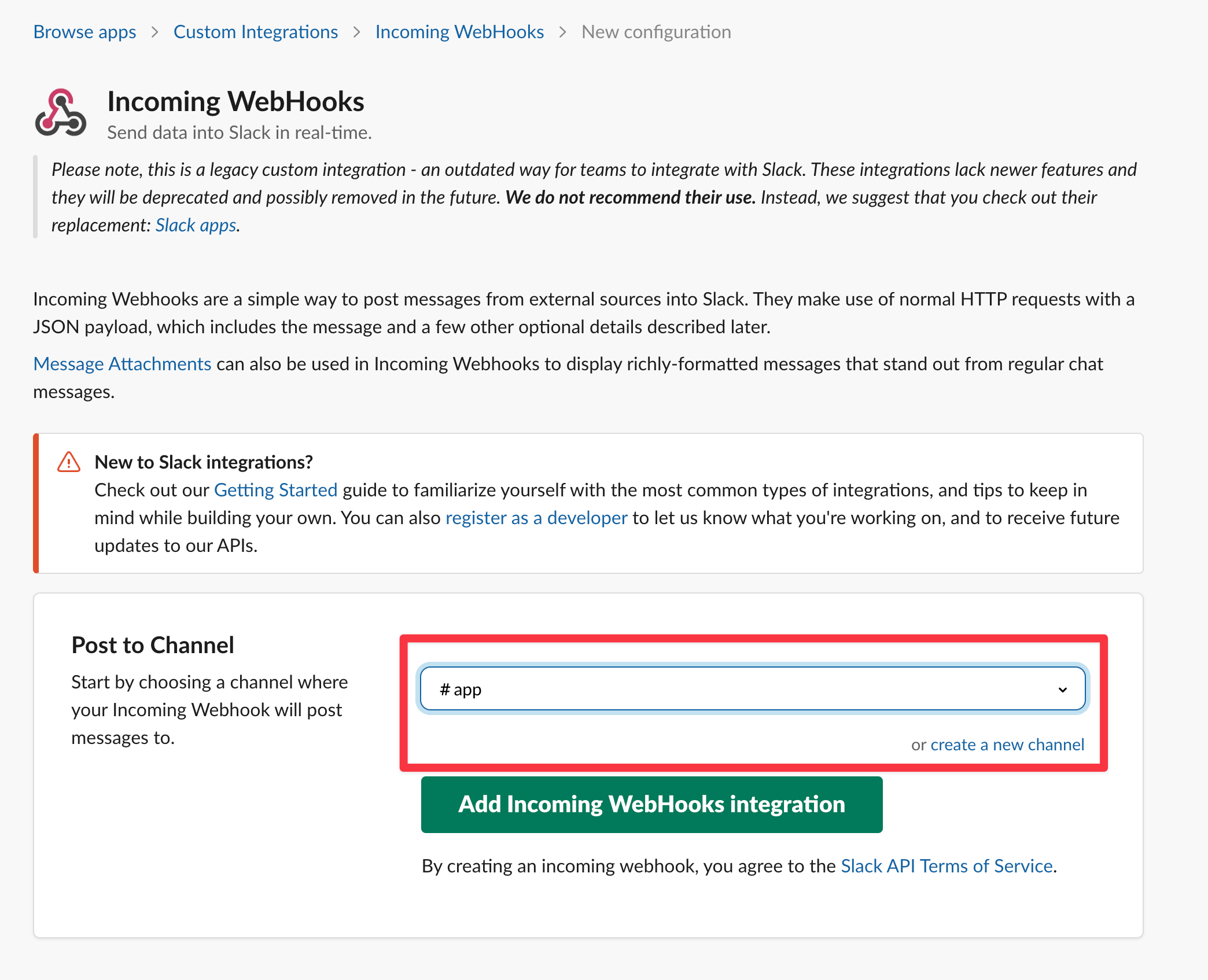
Choose the channel or person where you want to forward the messages, then click Add Incoming WebHooks Integration:
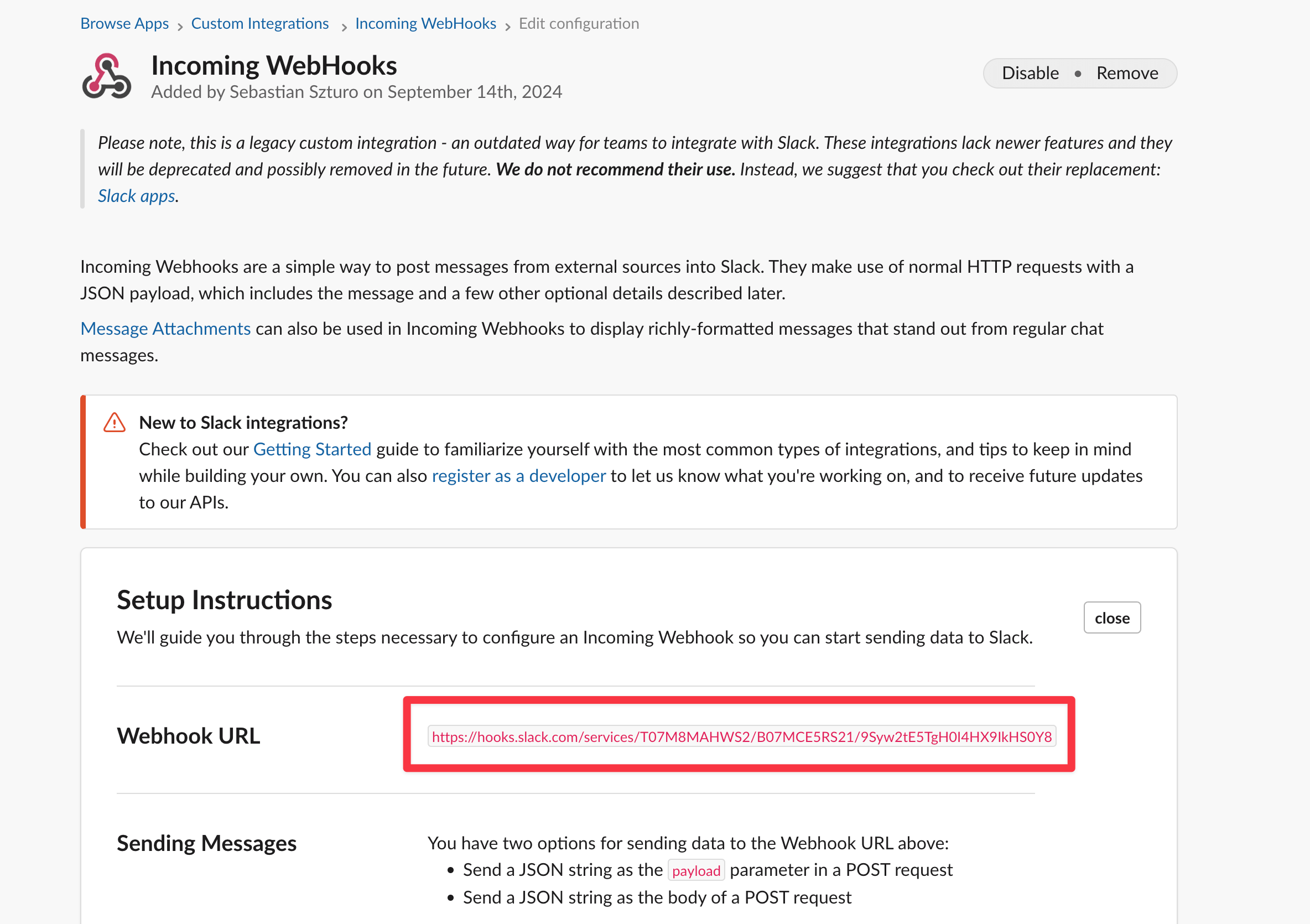
Step 2: Copy your Webhook URL
Last, copy your Webhook URL from the setup instructions. You’ll need this URL in the next step to configure the Slack integration in Forward SMS.
Create a Slack Destination in Forward SMS
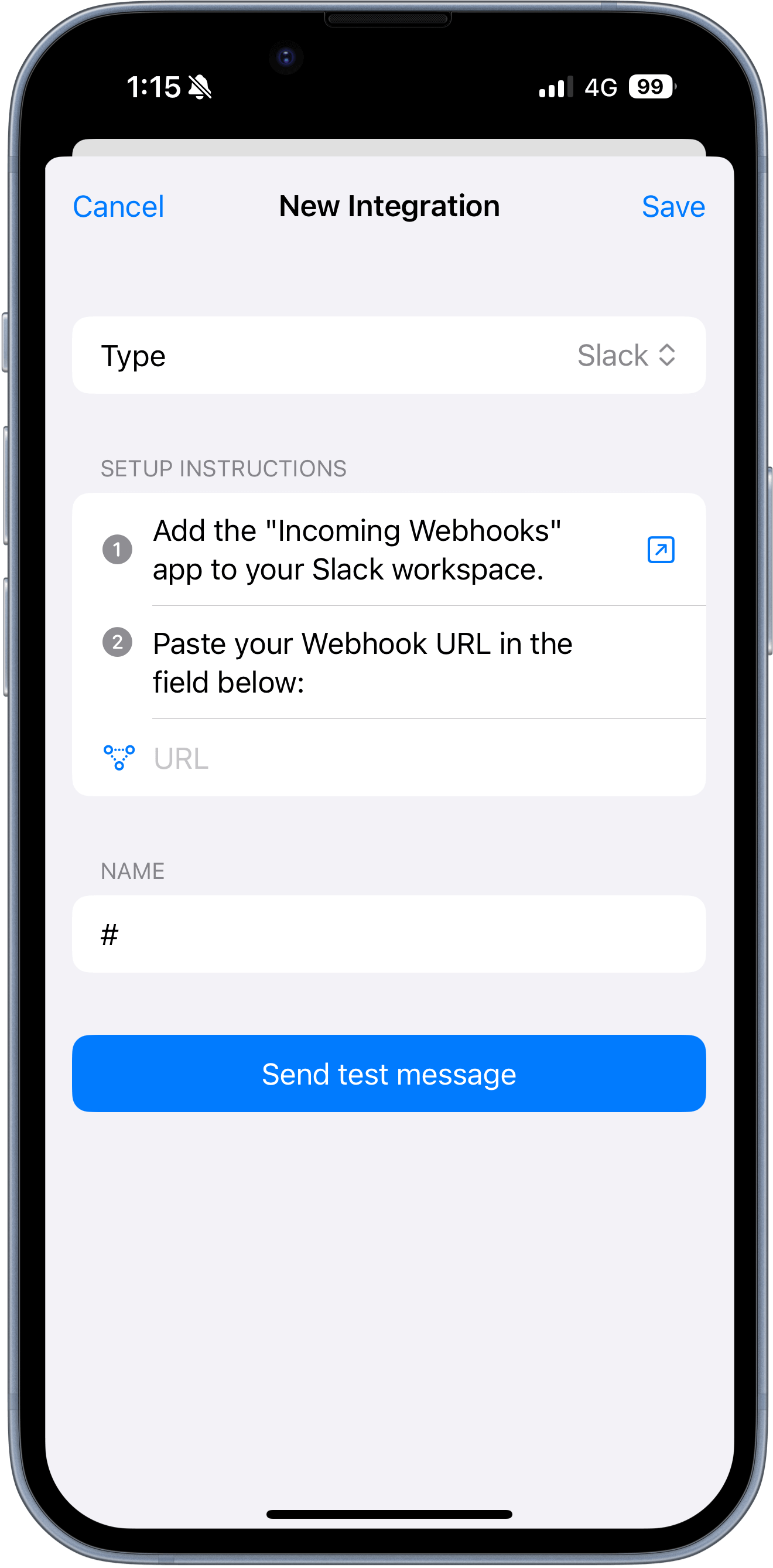
Open the Forward SMS app and create a new Slack destination. Copy and paste the Slack Webhook URL we created in the previous step, then tap Save.
Test if everything is set up correctly by tapping Send test message and checking if a message arrived in Slack.
Setup Shortcuts Automation
Lastly you'll need to setup your  Shortcuts Automation. You can learn more about that here: How to forward SMS on iPhone?
Conclusion
Following these steps, you can now automatically forward your text messages from your iPhone to Slack using Forward SMS and Shortcut Automations. Allowing you to instantly forward important SMS straight to your team in Slack.
For other forwarding options, check out our guides for Email, Discord, Microsoft Teams, and custom Webhook endpoints.